Inside the Eduverse Day Planner: a day book that keeps up with a real school day
September 7, 2026 · The Eduverse team
Most planning software is built around documents. A school day is built around periods — Block 1 rolls into Block 2, a short break, one more class before lunch, a supervision slot, and whatever the fire drill did to your afternoon. The Eduverse Day Planner is built the second way: it reads your timetable and lays your actual day out as a page, period by period, with somewhere to write in every class period.
It was built by a certified Alberta teacher, and it shows in small ways: rotation days ("Day 1" through "Day 6"), bell schedules, supervision slots with a location, and a carry-over row for the things yesterday didn't finish.
The day as a page
Set up your timetable once — school year, bell schedule, rotation pattern, period types — and the planner renders each date as a ruled-paper journal. (Prefer to watch? Here's the video walkthrough of the timetable setup.)
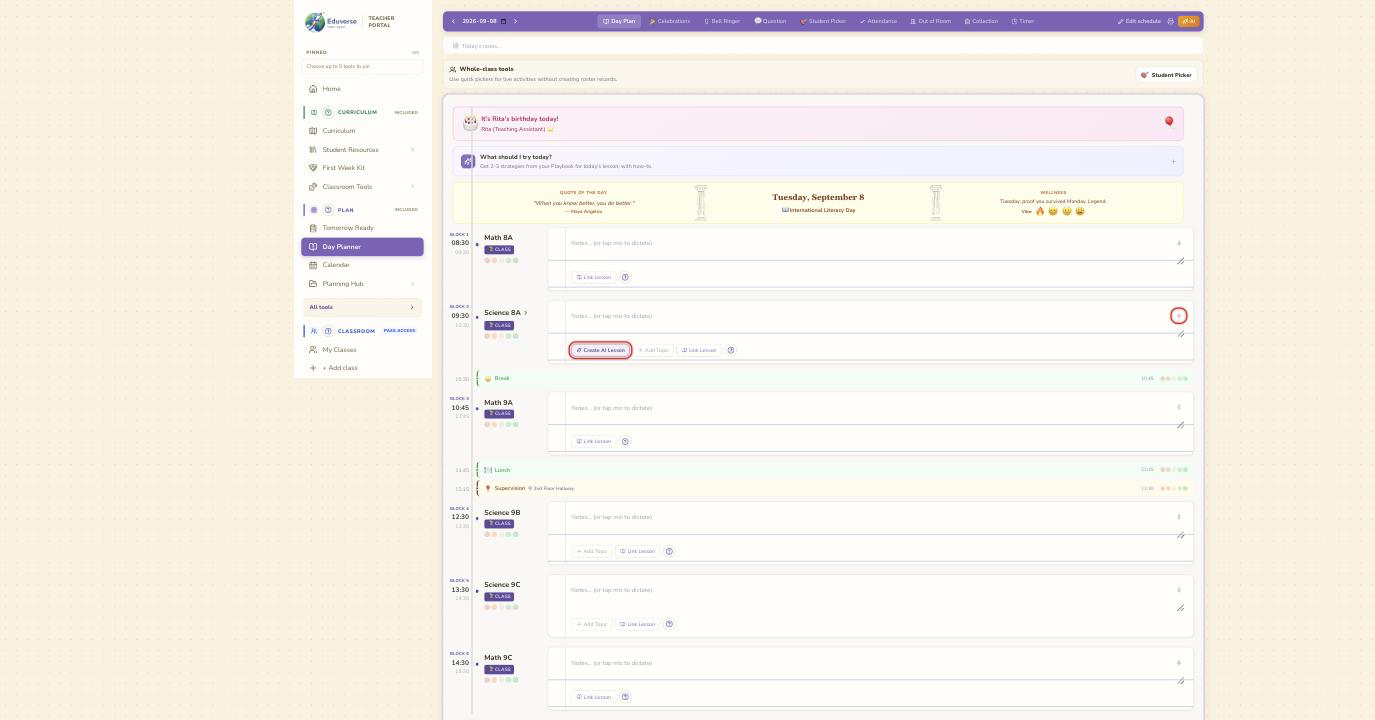 Class periods get a full row: the block label and times, the class name, and a writing surface for that period's plan. Lunch, breaks, prep, and assemblies render as thin strips, so the page reads like your day actually runs.
On each class period you can:
- Add plan items with working links. Items added from the curriculum, a lesson, or an activity carry a colour-coded source badge and a working link back to where they came from. The old free-text path — rows that looked like links and went nowhere — was removed on purpose.
- Write period notes. Notes save to your account on the day plan itself, so they survive even if you delete or rearrange the items in that period. And they're yours: a principal sees a day plan only if you've switched on plan sharing for your school, what they see stops at the topic list — never your notes, must-dos, or reflections — and every view lands in a transparency log you can read.
- Flag a must-do. One line per item for the thing that has to happen even if the rest of the period goes sideways.
- Check things off. Done items get a strikethrough, and unfinished ones show up the next day as carry-over chips you can add back with one tap.
Days with no timetable periods aren't dead ends either: you get five blank ruled journal blocks (Time, Class / block, Plan & notes) that save the same way, plus a prompt to set up or review your timetable. There's also a printable letter-size day plan, a version history with revert, and a "Notes for the day" line for the photo-day-and-fire-drill category of information.
Anchored to curriculum where it counts
On a Science period — or any period you haven't labelled with a subject — Add Topic opens Eduverse's Alberta Science library for Grades 1–9: grade, then unit, then the I Can statement you're teaching (our plain-language restatement of an official Alberta outcome). The plan item links back to that outcome in the curriculum browser, where the official wording stays read-only.
From the planner's top bar, the amber AI button can also sketch a whole day: pick a grade, a unit, and a time budget, and it suggests topics with the reason each one fits, ready to add to the plan.
The AI lesson planner, and its guardrails
On any block linked to one of your classes, Create AI Lesson opens the AI Lesson Planner with the grade and subject already set to that class. You pick the unit, optionally the exact I Can statements you're targeting, and a time budget (30 to 180 minutes) — and if you want, layer on an instructional approach, teaching strategies, or the learning needs in your class, from ADHD to gifted, each tied to named, evidence-based strategies. Ten lesson sections are yours to toggle on or off; fewer sections generates faster and cheaper.
A full lesson usually takes two to five minutes, and you don't have to watch it: leave the page and Eduverse reconnects to the same job instead of starting another. What comes back is a working draft, not a script fragment — outcomes and success criteria at a glance, a phase-by-phase lesson flow with teacher actions, student actions, and key questions (each with the expected answer, the likely misconception, and a redirect), formative checks, differentiation for below and above grade level plus ELL support, and teacher notes including safety considerations. For Alberta Science, the AI is handed matching questions from Eduverse's validated question bank and told to adapt those rather than invent — and every question drawn from the bank carries a chip naming exactly which validated question it came from, so you can see at a glance which ones the AI wrote fresh. Other subjects work too — lessons there generate from your province's curriculum outcomes, and the page is upfront that no pre-built student activities exist outside Alberta Science.
The guardrails are the point. A generation that fails Eduverse's quality checks — placeholder answer options, a hands-on activity missing its materials list or safety guidance, differentiation missing for a learner need you selected — is blocked: it cannot be saved, scheduled, or presented, you're told in plain language why, and no automatic paid retry is started. In a good draft, official curriculum wording, answer options and keys, and the named research citations stay locked; the teaching content — phases, questions, notes, differentiation — is editable in place, and every AI revision saves a version to History first, so any earlier version is a click away.
Add to Day Plan then anchors the lesson to the date and period — or every period it runs in — with a one-to-two-sentence synopsis right on the planner row, so anyone glancing at the page can see what the class is doing without opening the full lesson (and you can reword that line without touching the lesson itself). Present turns the draft into projector slides: you choose which sections and phases go up, and key questions appear as questions only — they never bring their expected answers, misconceptions, or redirects along. (The assessment recap slide does show correct answers — leave it toggled off while students are watching.)
The rest of the planner is subject-agnostic. A Math or Phys-Ed teacher gets the full day book — timetable, notes, must-dos, linked lessons, and every classroom tool below. The curriculum-anchored Add Topic is where Eduverse's Alberta Science library plugs in.
The tools that run a class live
Alongside the Day Plan tab sits a row of tools you'd otherwise juggle across three browser tabs and a cup of popsicle sticks:
- Student Picker — sticks by default (draw a name from the cup), with a wheel, random groups, and a tournament bracket one tap away. A chosen voice can announce each pick aloud.
- Bell Ringer — one warm-up per day, pulled from a library of riddles, math, logic, lateral thinking, word play, and science prompts, with a full-screen projector view and a reveal-answer button.
- Question — type a question for the class and read it aloud; in browsers with speech recognition (like Chrome or Edge), you can dictate it instead.
- Timer — a countdown that actually makes a sound at zero.
- Celebrations — birthdays for the colleagues you add (TAs, EAs, admin, teaching partners) with a 30-day radar, plus a this-day-in-history card on days that have one. On the Classroom tier, student birthdays join in from your class rosters.
A quiet detail that matters: the picker's Quick roster — first names or nicknames you type in yourself, not a class list — is stored on your device only and never sent to our servers.
A little reflection, built in
At the top of each day sits a vibe check (Great to Rough) and a per-class energy rating; at the bottom, once the day has plan items, a lesson reflection: a star rating and four short prompts (What worked well? What didn't? What would I change? Any surprises?), with a fuller after-action review a click away. The planner can also suggest two or three teaching strategies for the day's material, each with a why and a how-to, linked into the Playbook.
None of it is mandatory. It's there for the days you want to close the loop, and invisible effort on the days you don't.
What sits in which tier
The Day Planner, timetable setup, and the AI Lesson Planner are part of the paid Plan tier, alongside the Planning Hub's year, term, unit, and lesson plans — which get their own tour in year plans, unit plans, and your TPGP. The Classroom tier adds the roster-connected tools inside the planner: Attendance (with a minutes-late field), Out of Room (a hall-pass log with a live timer), Collection (track one form, permission slip, or homework at a time), and the ability to point the Student Picker at a real class roster. A small courtesy there: Attendance and Out of Room open on the class your timetable says you're teaching now — not whichever class happens to load first.
Plan and Classroom pricing is on the teacher page; the tools described here live inside the planner itself.
Sources: All product capabilities described here were checked against the Eduverse application implementation on September 7, 2026. Feature availability and plan details may change; see the teacher page for current information.